
Resetting your WiFi router to its factory settings can help resolve persistent issues, such as slow internet speeds, connection drops, or forgotten login credentials. When you reset your router, it will return to its original default configuration, erasing all custom settings you’ve made. This is often a good solution when you encounter severe issues that cannot be solved by simply restarting the router.
Here’s a step-by-step guide on how to reset your WiFi router to factory settings.
What is a WiFi Router Reset to Factory Settings?
Before diving into how to reset your router, it’s important to understand what this process entails. Resetting your router to factory settings restores the device to its original state as it was when first purchased. This action erases all personalized settings, such as your WiFi network name (SSID), password, and custom configurations.
In essence, performing a factory reset wipes all configurations and settings and sets the router back to its default settings. This can be useful if you’re experiencing persistent issues with your router, such as:
- Slow internet speeds
- Connectivity problems
- Inability to log into the router’s admin interface
- Forgotten router password
- Problems caused by firmware glitches
Why Do You Need to Reset Your WiFi Router?
There are several reasons why you might want to reset your WiFi router to factory settings. Let’s take a look at the most common scenarios:
1. Forgotten Router Login Credentials
Occasionally, users forget the username and/or password because they don’t exactly change the router’s settings that often. Also, a factory reset will reset the default login [] read more! you can visit the admin page once again..!
2. How To Fix Slow Or Unstable WiFi Connectivity
If the WiFi is flaky, dropping off or performing poorly, it can help to reset and clear out these issues by putting the router back to its default state, so any conflicts on the network will disappear.
3. Troubleshooting Network Problems
From time to time, these routers not connect correctly or can experience problems such as dropped connections, frequent timeouts, and slow data transfer. A factory reset can fix this issue as it removes potentially corrupted settings and incorrect configurations.
4. Before You Sell Or Give Away The Router
When you’re ready to replace old router or sell it, remember that doing a factory reset is going to erase your information and password, keeping the secrets safe.
5. Security Issues
If you believe your WiFi is being hijacked, a reset can make sure things are back under your control as the owner of the router and allow you to configure it with a new password.
How to Reset Your WiFi Router to Factory Settings
The great news is that it’s really easy to reset your WiFi router, and it doesn’t take much time at all. And if you’re not sure how to reset your router, here’s a step-by-step guide that’ll have it back in its default configuration.
Step 1: Find the Rest Button
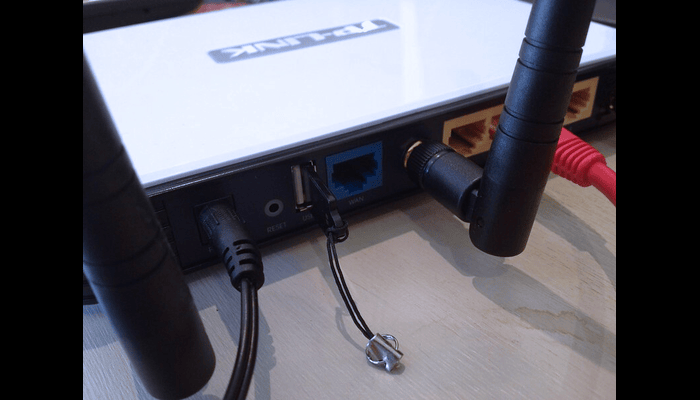
The physical reset button is usually at the rear or bottom of the device. This button is usually small, and may be inset so a pin, paperclip or similar object is needed to press it. It’s generally called “Reset” or “Restore”.
Step 2: Power On the Router
Make sure the router is powered on and connected to a working power source. The router must be on to factory reset.
Step 3: Press and Hold the Reset Button
Whilst using a paper clip or pin, press and hold the reset button for 10-30 seconds. You’ll need to hold the button down longer than for a quick restart in order to initiate a complete reset.
Tip: You’ll know the router is resetting when the lights flicker or turn off for a few seconds. Upon pressing and holding the button, your router will be reset to its factory settings.
Step 4: Allow the Router to Reboot
After you release the button, the router will restart. This can take a few minutes. During the next two minutes, the router will revert all of its settings back to manufacturer’s default including the Wireless Network name (SSID) and Password.
Step 5: Reconfigure the router
After the reset is complete, you’ll set up your router again. This typically includes:
Enter your WiFi name (SSID): Choose a name that’s easy for you to remember, but not something others can guess.
Change the default password. Your router has a default password, usually printed on a sticker or on the bottom of your router. Be sure to change it to a good, strong password to secure your network.
Set up your router’s security options: When setting up your network, choose WPA2 or WPA3 encryption to secure it and keep strangers out.
What Does a WiFi Router Reset Do?
A few important things happen when you reset your router:
-
All custom settings are erased
Any backups you’ve made, including any changes you’ve made to your Wi-Fi settings, port forwarding, static IP, and security settings, will also be erased. You’ll need to back these up after the reset.
-
Default login credentials are restored
The router’s default login name and password are erased. These are usually written on a label on the back or base of your router. You can change the password to something more secure after you log in.
-
Network settings are restored
The WiFi network name (SSID) and password will be reset to their factory default values. You’ll need to assign a unique network name and password.
-
Security settings are restored
Factory defaults can restore your router’s firewall and security settings. You’ll need to re-enable security features like WPA2 or WPA3 encryption to keep your network secure.
How are resetting and restarting your WiFi router not the same thing?
Resetting and restarting your WiFi router sound similar, but they are two completely different functions with different results:
Rebooting the router: This means you turn your router off and on again. Rebooting can clear temporary caches and fix minor connection issues like slow speeds or disconnections. This should not delete any settings from your device.
Resetting the router: More drastic, this involves completely erasing all settings and returning the router to its original factory state. A reset can also be performed for more serious issues, like a forgotten password or network configuration issues.
Advantages of Resetting Your Router to Factory Settings
1. Improved performance
By removing old settings and configurations, a reset can improve speed and eliminate related performance issues.
2. Fix persistent connection issues
If your WiFi suddenly stops working, whether the connection is intermittent or not at all, a factory reset will usually fix it.
3. Improved security
A factory reset allows you to update your default login details and WiFi password, which will increase your security and deny your system unauthorized access.
4. Resolve configuration conflicts
If you’ve messed with your router over time and can no longer remember what caused the problem, resetting it restores all default settings so you can start fresh.
5. Easy troubleshooting
Resetting your router is a simple and effective troubleshooting step to take when all else fails, even if it involves configuring complex or recently changed settings.
When Should You Restart Your WiFi Router?
It doesn’t happen often, but once in a while when you are visiting a website, you’ll click a link and nothing will happen. But, is all that hopeless and how can you ensure that a reset is really what you need to make or you might be better of using other troubleshooting approach. The following are some of the common scenarios where resetting your WiFi router can be helpful.
-
Forgotten Router Login Credentials
There may be areas of your home or business where you start to lose the wireless signal, and subjective as it may sound – any time your wireless signal is weak at the device it isn’t getting enough bandwidth (information) fast enough to paint an accurate picture for your eyes, fingers or mouth.
Why it works: By resetting the router, you are setting it back to factory settings all of your old login information will no longer work and the default login credentials, possibly printed on a sticker affixed to your router, will take over. After the reset is finished you’ll be able to login with the default credentials and setting something a bit more memorable or secure.
-
Persistent Internet Connection Issues
If you’re noticing sluggish speed, frequent disconnects or — worst of all — no internet at times when you’ve done the standard troubleshooting of rebooting your router and checking your cables, resetting can help resolve the problem.
Why it helps: Routers accumulate configuration errors, corrupt data and other “gunk,” so simply plopping down the box can clear some of that out. This can be fixed by a simple reset and all should be good again.
-
Forgotten or Lost WiFi Password
Forgot your WiFi password and don’t have it written down? Reset the router and set up a new password.
Why it works: When you reset the router, you’re erasing all custom WiFi settings, including the password. If it doesn’t help, perform a router reset and login to the settings page and enter your own WiFi name and password.
-
Security Concerns (Hacked Router)
If you believe that an unauthorized person has logged on to your WiFi network (such as a neighbor or guest, for example), reset it to return it to its default state — which should then require new devices connecting to the network to enter a password) may also be necessary.
Why it works: Resetting the router erases every compromised setting, such as those possibly made by a hacker to your default admin credentials and old WiFi passwords. You can then establish a new, robust password and use newer encryption settings, such as WPA2 or WPA3, to secure your network.
-
Network Configuration Conflicts
If you’ve altered your router’s settings – perhaps to change the network region, upgrade DNS settings or work with advanced networking and experienced problems – then performing a reset will bring the router back to its default state and that’ll wipe any conflicts.
Why it helps: Clearing the router undoes any misconfigurations, including port forwarding and static IP settings, as well as DSN problems. With your reset, you can return to a fresh start and meticulously relearn the settings if necessary.
-
After a Power Surge or Outage
This also applies to power surges, outages or electrical issues in the house — the router may simply not connect back to the network correctly after that,” according to Old HP Guy. If your router is behaving erratically after a lightning strike, reset it — power cycling can sometimes get the router going again.
Why it works: While you may not do this regularly, a factory reset removes errors caused by power variances or the network itself, allowing the router and your devices to reconnect without nagging issues.
-
Selling or Giving Away Your Router
If you’re getting rid of your router or switching to a new one, be sure to factory reset it to delete all personal data, settings, and credentials.
Why it works: A factory reset removes your WiFi network name, password, and any other personal settings saved on the device, ensuring your privacy is protected and the new owner starts from scratch.
-
Firmware or Software Glitches
If the router is having issues that might be related to a glitch or bug, like unresponsiveness, frequent drops in signal, or if it isn’t updating properly, you’ll want to try giving it a default factory reset.
Why this works: A reset will reload the default firmware, removing any software errors or bugs that could have built up due to prolonged use. If the firmware on the router is out of date, or ruined in some way a reset can help it get back to normal operation.
Changing Internet Service Providers (ISPs)
If you’re switching ISPs and your new router requires setup, or if you can’t figure out how to configure your old router with a new provider, you might need to reset it to clear any ISP-specific settings.
Why it works: A router reset will give you the opportunity to enter in the new ISP’s configuration details, meaning that everything will work seamlessly with your new service provider.
FAQs
1. Do Wi-Fi Routers Need to Be Reset?
Like any electronic device, Wi-Fi routers have their own intelligence and can sometimes get complicated. Resetting your Wi-Fi router is an easy way to fix a variety of problems, but it’s not something you should do every day. Whether you need to reset your router will depend on the type of problem and who is experiencing it.
2. How often should I reset my Wi-Fi router?
Typically, you don’t need to reset your router regularly. However, if you’re having connection issues (slow speeds, drops, or disconnections) that simply rebooting doesn’t fix, it’s okay to reset it. It’s a good idea to keep it fresh and maintain maximum performance every now and then.
3. Can I perform a reset remotely?
Modern routers often have built-in remote management features that allow you to reset the router from anywhere with an internet connection. But not all routers have this capability, and not all routers use a reset button; many require physical access to the device to trigger a factory reset, meaning someone could break into your home or office and use that button against you.
4. What Will I Lose if I Reset My Router?
To fix a router laptop IP conflict, reset your router to its factory settings. This resolves connectivity and performance issues, but erases all custom settings, returning the router to its original state.
Conclusion
Factory resetting your WiFi router can clear out that mess from your router’s configuration and get rid of any bugs that might be causing the error. From slow internet to Wi-Fi not working, You can use tools and tips to avoid calling for help or enduring poor router performance. Resetting erases custom settings. So try other troubleshooting techniques first — like simply turning your router off and on again.