
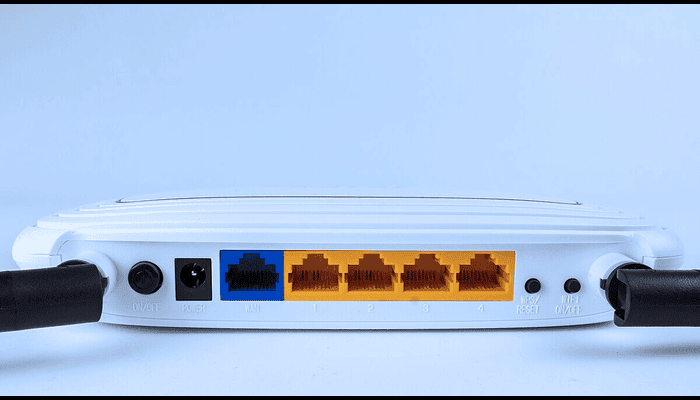
If your wifi router keeps dropping your devices, or you’re just staring at that endless loading wheel. This time, rebooting your router can help you. As someone who’s spent years diving into networking tech, troubleshooting everything from home setups to office networks, I can vouch that a quick reboot fixes a ton of issues without any fancy tools. Drawing from reliable sources like High Speed Internet.com and CNET, this guide will walk you through it all in a friendly, no-nonsense way. We’ll cover why it works, how to do it right, common pitfalls, and more. Let’s get your connection humming again!
Why Reboot Your WiFi Router?
Think of your router as a hardworking mini-computer juggling all your devices’ data demands. Sometimes your router can get cluttered with temporary files, memory leaks, or even minor software glitches. That time rebooting clears such junk, refreshes connections, and often restores peak performance.
Key benefits are here:
-
- Rebooting increases speed and improves stability.
- Solve the connectivity issues
- Enhances Security
- Gives the hardware a break, helps to cool and increase lifespan.
- Optimizes IP and DNS.
- Boosts Overall Performance
The Difference Between Rebooting and Resetting
Rebooting and resetting sound similar, but these are two different things. It turns the router off and on, keeping all your settings like WiFi name and password intact. Resetting is a factory reset, wiping everything back to defaults, which means you’ll have to set it up from scratch.
From trusted sources like BroadbandNow, stick to rebooting for everyday fixes; reserve resetting for when nothing else works, like persistent bugs or forgotten passwords. It’s like restarting your phone versus erasing it completely.
Step-by-Step Guide to Rebooting Your WiFi Router
Follow the following steps to reboot your router:
Manual Power Cycle Method
- Unplug the Devices: Start with your modem by unplugging its power cord from the wall or the device itself. Then do the same for your router. Remove any batteries if your model has them.
- Wait It Out: Hold for at least 30 seconds to 60 seconds or even 1-2 minutes to fully discharge capacitors and clear memory. This is crucial; rushing can leave issues lingering.
- Plug Back In: Reconnect the modem first and wait for its lights to stabilize. Then plug in the router and watch its indicators light up.
- Test Your Connection: After everything’s powered up, connect a device and check speeds or load a site. If you have a combo modem-router, just unplug that one unit.
This method, endorsed by CenturyLink and Electric.ai, is foolproof and works even if you can’t access settings.
Using the Router’s App or Web Interface
Many modern routers let you reboot remotely:
- Log in to the admin page (often 192.168.1.1 or 192.168.0.1) using your browser, enter credentials (default is usually admin/admin or on the sticker).
- Find the “Reboot” or “Restart” option under Advanced or Maintenance settings.
- Or use the manufacturer’s app (e.g., Spectrum or Netgear) for a one-tap reboot.
Handy for when you’re away, but if the router’s frozen, the manual is better.
Common Mistakes to Avoid When Rebooting
Even simple tasks have pitfalls—I’ve seen them trip up plenty of users. Here’s what not to do, pulled from real-world advice on Reddit and tech blogs:
- Not Waiting Long Enough: Skipping the 30-60 second wait means incomplete discharge, leaving problems behind.
- Forgetting the Modem: If separate, rebooting only the router might not fix ISP-side issues—always do both.
- Pressing the Reset Button Instead: That tiny hole is for factory resets, not reboots; hold it too long and you’ll erase settings.
- Ignoring Order: Plug the modem in first; routers need the modem’s signal to connect properly.
- Rebooting Too Frequently Without Checking: If you need it daily, there might be a deeper issue like outdated firmware—update via the app.
- Not Testing Cables: Loose power or Ethernet cords can mimic reboot needs; secure them first.
Avoid these, and you’ll build trust in your network’s reliability.
When Should You Reboot Your Router?
From my expertise and sources like Fidium Fiber, reboot when you notice:
- Slow speeds or buffering
- Devices won’t connect
- After power outages
- Weekly as preventive maintenance for heavy use
If reboots don’t help, check for firmware updates, interference, or contact your ISP. Persistent issues might need a reset or replacement.
Frequently Asked Questions
Based on common queries from users and expert sites, here are straightforward answers:
How often should I reboot my router?
Once a week for optimal performance, or whenever issues arise. Regular reboots prevent buildup, per HighSpeedInternet.com.
Does rebooting change my WiFi settings?
No, it preserves everything—unlike a reset.
What’s the ideal wait time during a reboot?
30-60 seconds minimum; up to 2 minutes for thorough clearing.
Can I reboot my router from my phone?
Yes, via the app if supported—convenient and remote.
Why does rebooting fix so many problems?
It clears memory, resyncs connections, and resolves temporary glitches, as explained on Super User.