
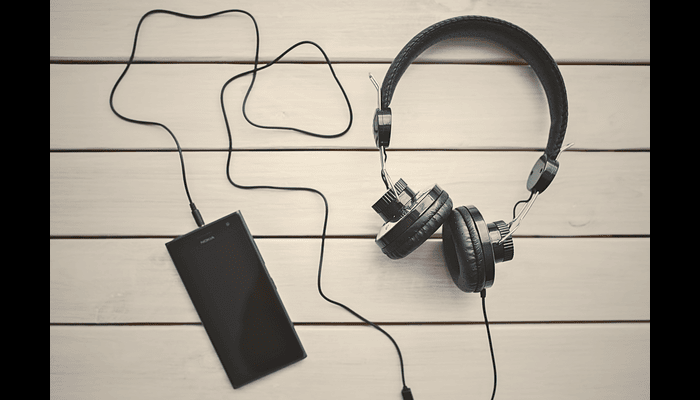
Beats headphones are popular for it’s excellent design, powerful bass, and easy using system. You may easily connect any Beats model, wired or wireless, with the help of this article’s detailed instructions, expert advice, and troubleshooting solutions. Although, if you have any doubt how to connect beats headphones, check out our article.
Understanding Your Beats Model
Different Beats models offer distinctive means of communication, like:
- Beats Solo Pro/Study has active noise reduction and a Bluetooth pairing button on the earcup.
- When the Powerbeats Pro case is opened, the true wireless earphones instantly turn on and off.
- Beats Flex features a neckband design, magnetic earbuds, and integrated controls.
- BeatsX: Native Apple pairing neckband earbuds with an Apple W1 chip.
- The Apple W1 on-ear wireless beats the Solo3 wireless.
- Knowing your model can help you locate pairing buttons, ports, and any special features, like Apple’s W1/H1 chips.
Pairing Beats Headphones via Bluetooth
In the following section I have showed how to do Step-by-Step Bluetooth Pairing
- Power On
- Press and hold the power button until the LED flashes.
2. Activate Pairing Mode
- For most models, press and hold the Bluetooth button until the light blinks.
3. Enable Bluetooth on Your Device
- Go to Settings. Then go to Bluetooth and turn it on.
4. Select Your Beats
- Under “Available Devices,” tap your Beats model name.
5. Confirm Pairing
- Wait for “Connected” confirmation or beep tone.
Troubleshooting Bluetooth Issues
- No LED Indicator: Charge your headphones for at least 10 minutes.
- Device Not Found:
- Ensure no other device is already connected.
- Turn Bluetooth off/on on your source device.
- Restart both headphones and device.
- Intermittent Audio: Move closer to your device and avoid physical obstacles or interference.
Connecting Beats Headphones with a Cable
For wired listening (or when battery is low):
1.Use the Included Audio Cable
- Plug one end into your Beats’ 3.5 mm port.
2. Connect to Audio Source
- Insert the other end into your device’s headphone jack or adapter.
3. Automatic Switch
- Many Beats models mute Bluetooth automatically when cable is inserted.
4. Volume & Controls
- Use inline controls or your device’s volume if inline controls are absent.
Using Beats with Different Devices
iPhone & iPad
- Apple W1/H1 Chip Models: Simply hold Beats near device; a pop-up appears—tap “Connect.”
- Other Models: Follow standard Bluetooth pairing.
Android Phones & Tablets
- Open Settings ➔ Bluetooth
- Pair via device list.
- Use Beats app (Android) for firmware updates and EQ customizations.
Windows & macOS Computers
- Windows: Settings ➔ Devices ➔ Bluetooth & other devices ➔ Add Bluetooth device.
- macOS: System Preferences ➔ Bluetooth ➔ Connect.
- Adjust audio format in Sound settings for best fidelity.
Other Devices (TVs, Consoles)
- Ensure the device supports Bluetooth audio.
- Pairing steps similar: enter device’s Bluetooth menu, select Beats.
- For non-Bluetooth TVs, consider a Bluetooth transmitter.
Optimizing Audio Performance
- Firmware Updates: Use the Beats or Apple Support apps to keep firmware current.
- EQ & Sound Customization:
- Apple Music’s EQ presets
- Beats app for Android EQ presets
- Proper Fit: For in-ear models, try different ear tip sizes for optimal seal and bass response.
Maintaining Connectivity & Battery Life
- Auto-Off Feature: Power off manually after extended inactivity.
- Battery Management:
- Charge fully before long trips.
- Avoid extreme temperatures.
- Storage: Keep in protective case to prevent accidental power-on or pairing issues.
Frequently Asked Questions
Q: Why won’t my Beats connect to my phone?
A: Ensure they’re in pairing mode, sufficient charge, and Bluetooth is on. Restart devices if needed.
Q: How do I reset my Beats headphones?
A:
- Solo³/Studio³: Hold power and volume down for 10 seconds.
- BeatsX/Powerbeats: Hold power for 10 seconds until LED flashes.
Q: Can I connect Beats to multiple devices simultaneously?
A: Most Beats support only one active connection. Disconnect from one device before pairing another.
Q: What is the range of Beats Bluetooth?
A: Up to 30 feet (10 meters) without obstacles. Walls or interference can reduce range.
Q: Why is audio skipping or cutting out?
A: Low battery, interference, or distance too far. Charge fully, move closer, or switch off other Bluetooth devices.
By following these instructions—tailored to each Beats model—you’ll ensure a smooth, reliable connection every time, backed by audio clarity and comfort. Enjoy your music without a hitch!
Q: How do I reset my Beats headphones?
A: Solo³/Studio³: Hold power and volume down for 10 seconds.
BeatsX/Powerbeats: Hold power for 10 seconds until LED flashes.
Q: Can I connect Beats to multiple devices simultaneously?
A: Most Beats support only one active connection. Disconnect from one device before pairing another.
Q: What is the range of Beats Bluetooth?
A: Up to 30 feet (10 meters) without obstacles. Walls or interference can reduce range.
Q: Why is audio skipping or cutting out?
A: Low battery, interference, or distance too far. Charge fully, move closer, or switch off other Bluetooth devices.
By following these instructions—tailored to each Beats model—you’ll ensure a smooth, reliable connection every time, backed by audio clarity and comfort. Enjoy your music without a hitch!