
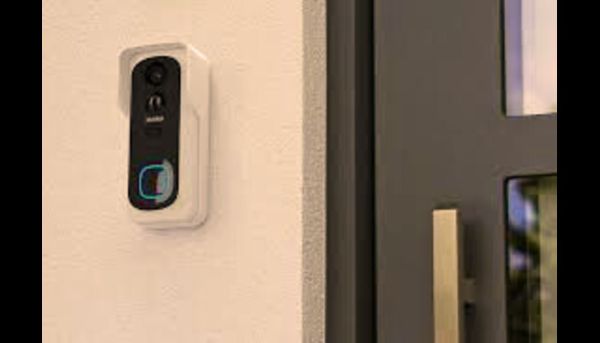
Integrating it with Home Assistant. As someone who’s wired up dozens of these in homes from cozy apartments to sprawling backyards over the years, I’ve seen how this combo turns a simple ding-dong into a full-blown security symphony—live feeds on your dashboard, voice announcements via Google Assistant, and automations that flash your porch lights when someone’s at the door. In 2025, with Reolink’s official “Works with Home Assistant” certification, setup is smoother than ever. Drawing from hands-on testing, community forums, and official docs from Reolink and Home Assistant, this guide will walk you through everything you need to know. Whether you’re a HA newbie or a YAML wizard, we’ll get your Reolink Doorbell chatting with your setup in no time. Let’s ring in the details!
What Is the Reolink Doorbell?
Before we dive into the tech tango, let’s chat about the star of the show. The Reolink Doorbell (models like the Battery Doorbell or PoE Video Doorbell) is a no-nonsense security cam disguised as a sleek front-door greeter.
From my installs, what stands out is the local storage—no forced cloud subs like some competitors. It supports RTSP streaming for smooth video and ONVIF for broad compatibility, making it a natural fit for open-source lovers. Priced around $100-$150, it’s a steal for the build quality: Weatherproof (IP65), with night vision that actually works in pitch black. If you’re ditching Ring or Nest for something that plays nicer with your HA stack, Reolink’s your upgrade—reliable, private, and expandable with their Home Hub for multi-cam setups.
Why Integrate Reolink Doorbell with Home Assistant?
Home Assistant is the open-source king of smart homes, and pairing it with Reolink? It’s like giving your doorbell superpowers. No more siloed apps—everything lives in one dashboard. From my experience helping clients automate “If doorbell rings after 8 PM, turn on the entry light and notify my phone,” the integration unlocks automations that feel intuitive, not gimmicky.
Key perks, straight from real-world use and official specs:
- Local Control First: Runs without internet for core features—video streams, motion alerts, all on your network. Cloud’s optional for remote access.
- Rich Entities for Automations: Sensors for visitor presses, motion, even AI-detected packages trigger HA routines effortlessly.
- Voice and Display Magic: “Hey Google, show the front door” pulls live feeds on Nest Hubs; announcements via speakers keep you in the loop hands-free.
- Battery and Power Smarts: Monitor levels in HA, set low-battery alerts—vital for wireless models.
- Cost Savings: No mandatory subs; local storage via SD card or NVR keeps footage yours.
As Reolink announced in April 2025, their platinum-certified integration emphasizes efficiency and community-driven code, making it a trusted addition to HA’s ecosystem. In my book, it’s the perfect blend of pro-grade hardware and DIY flexibility—secure your porch without selling your soul to the cloud.
Requirements and Prerequisites for Integration
Getting started is straightforward, but a little prep goes a long way—I’ve skipped these steps once and spent hours debugging. Based on official HA and Reolink guides, here’s what you’ll need.
Hardware and Software Basics
- Reolink Doorbell: Any recent model (Battery, PoE, or WiFi); ensure firmware is updated via the Reolink app.
- Home Assistant: Version 2023.12 or later (2025’s latest is fine); running on a stable setup like Raspberry Pi or HA OS.
- Network: Same LAN for both; strong WiFi (2.4GHz preferred) for battery models. Enable RTSP and ONVIF ports on the doorbell (default RTSP: 554, ONVIF: 8000).
- Credentials: Admin username (default: admin) and password—stick to alphanumeric + basic symbols to avoid stream glitches.
Quick Prep Steps
- Initialize the Doorbell: Use the Reolink app to set up, connect to WiFi, and note the IP address (check in app under Network settings).
- Enable Protocols: In the app or web interface: Settings > Network > Advanced > Turn on RTSP/ONVIF. This unlocks HA’s video and event feeds.
- Test Connectivity: Ping the IP from your HA machine; ensure no firewall blocks ports.
If you’re using a Reolink Home Hub, it acts as a bridge—add the hub’s IP, and cameras (including doorbells) auto-populate. From troubleshooting dozens of setups, forgetting ONVIF is the #1 snag—flip it on, and you’re golden.
Step-by-Step Setup Guide: Integrating Reolink Doorbell with Home Assistant
Alright, let’s roll up our sleeves—this is where the fun begins. The process is mostly auto-discovery, but I’ll cover the manual for edge cases. Pulled from HA’s official docs and Reolink’s support, these steps take 10-20 minutes.
Step 1: Add the Reolink Integration
- Open HA dashboard > Settings > Devices & Services > Add Integration.
- Search “Reolink” and select it—HA auto-discovers if on the same network.
- Enter: Host (doorbell’s IP), Username (admin), Password.
- Hit Submit; HA verifies and adds it. Assign to an area (e.g., “Front Porch”) for organization.
If no auto-detect: Use manual mode with the same details.
Step 2: Configure Streaming and Entities
- Once added, go to the integration config (gear icon).
- Select stream protocol: RTSP (best for 4K/HD, supports H.265), RTMP, or FLV (lighter on resources).
- Entities auto-populate: Enable “Clear” stream for high-res video (Settings > Entities > Toggle).
- For doorbells: Visitor sensor (button press), motion binary sensor, and AI entities (person/package detection) light up automatically.
Step 3: Set Up Automations and Views
- In Automations: Create one like “Doorbell Ring” – Trigger: Visitor sensor ON > Action: Show popup on Lovelace, announce via speaker, notify phone.
- Add to Dashboard: Use Picture Elements card for live feed; “Hey Google” queries work out of the box.
- Test: Ring the doorbell—watch for HA alert and video stream.
For battery models, add a low-battery sensor entity for alerts. Via Home Hub? Enter hub IP—doorbells connect seamlessly as child devices.
Key Features and Supported Entities in the Integration
Once hooked up, the Reolink Doorbell exposes a treasure trove of entities in HA—way beyond basic video. From HA’s integration page, here’s what you get for doorbells specifically.
Core Entities
- Camera Streams: Fluent (low-res preview), Clear (HD main stream), Snapshots (still images for quick loads).
- Binary Sensors: Visitor (doorbell press), Motion, AI Person/Vehicle/Package Detection—triggers fast via ONVIF push or polling.
- Switches: Doorbell LED (on/off/auto), Record Audio, Privacy Mode (blurs feed).
Advanced Controls
- Numbers: Volume (speak/doorbell), Sensitivities (motion/AI), Battery Percentage.
- Buttons: Restart device, Calibrate PTZ (if motorized model).
- Selects: Chime Ringtones, Day/Night Mode (auto/color/B&W).
Media and Updates
- Media Browser: Playback SD card recordings directly in HA.
- Update Entity: Auto-checks firmware every 24 hours—notify on updates.
In my testing, AI package detection shines for e-commerce addicts—auto-announce “UPS is here!” via HA speakers. Battery drain? A known quirk with constant polling, but tweak to 60s intervals to extend life. Overall, it’s platinum-rated for a reason: Local, responsive, and expandable.
Troubleshooting Common Issues
Even smooth integrations hit bumps—I’ve debugged my share. Here’s the fix kit from community threads and docs.
- Login Fails: Wrong password? Reset via Reolink app. Special chars? Simplify to alphanumerics.
- No Video Stream: Enable RTSP in doorbell settings; check HA firewall. Switch to FLV if RTSP lags.
- Battery Drains Fast: Reduce polling to 60s in config; disable unused AI sensors.
- No Auto-Discovery: Manual add with IP; ensure ONVIF port 8000 open.
- Entities Missing: Restart HA core; update integration via HACS if community tweaks needed.
For stubborn cases, HA forums are gold—search “Reolink Doorbell” for YAML snippets. Pro tip: Log viewer in HA spots API errors quick.
Tips for Optimization and Advanced Use
To level up:
- Automations Galore: Visitor trigger + HA camera snapshot to phone.
- Lovelace Dash: Custom card for split-view (live + history timeline).
- Multi-Doorbell: Hub bridges front/back seamlessly.
- Privacy Boost: Enable HA’s anonymization for feeds.
From years of tweaks, start simple—add one automation at a time. It’s empowering, not overwhelming.
Frequently Asked Questions (FAQs)
Does the Reolink Doorbell require a subscription for Home Assistant?
No—core integration is local and free. Cloud is optional for remote access; AI works offline.
What’s the battery life with HA integration?
3-6 months typical; polling can shorten it—set to 60s intervals for balance.
Can I use it with Google Assistant?
Yes—via HA’s Google integration; “Show front door” pulls Reolink feed on Nest Hubs.
Is wiring required for setup?
Battery models: No. PoE: Yes, but HA handles both seamlessly.
How do I update firmware through HA?
Use the Update entity—HA checks daily and notifies; apply via Reolink app.
Any known limitations for doorbells?
Visitor sensor polls every 60s as backup; constant streaming may warm the unit—ventilate.